Horizon lets you create messages that are automatically sent to your contacts when they meet specific conditions. This can be very useful (and time saving) for process automation; e.g. for following up on sales leads or inviting customers to complete a post-transaction survey.
Process overview
Set up a scheduled message as follows:
- Create any required custom fields for storing the data on which the trigger condition/s will be based.
- Create a group to identify the contacts that meet the required condition/s.
- Create the message that will be sent to these contacts.
- Create a scheduled trigger that will automatically send the message to the group on a recurring schedule
1. Create any required custom fields
If you will be scheduling your message based on a purchase or other transaction, you will need a 'data collection' set of custom fields in Horizon to store the transaction details (by ticking 'Data collection' in your set of custom fields). For more details see Setting up Custom Fields to store non-standard data.
Your custom fields might look like this:

2. Create a group to identify the contacts that meet the required condition/s
You will need a Horizon Group to identify the contacts to whom the message should be sent. Normally you will use a Rule Group, because these give the richest source of contact data. For more details see Rule groups: Automatic groups using contact data.
For example, if you have a set of custom fields to store hotel reservation data, you might create a group based on the date in your "Arrival" custom field, to identify guests who have an arrival in 2 days time. You would do this by selecting the "Arrival" custom field and using the "in [N] days time" date comparison: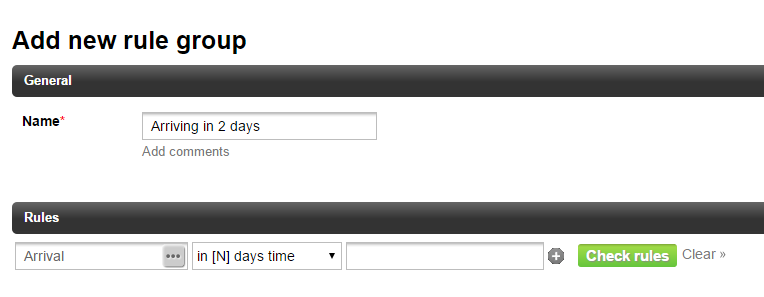
Note: You can click the "Check rules" button to see who this group currently contains. Later on we'll be scheduling it to automatically re-calculate the relevant guests every day!
3. Create a message to send to your contacts
Before setting up the trigger, you need to create the message that you'd like to send to your contacts. For more information see Creating an email message.
Note: Horizon is multi-channel, so you could just as easily create an SMS message instead of (or as well as) an email message.
4. Create a scheduled trigger
The final step is to create a scheduled trigger that will automatically send the message to the group of contacts everyday.
1. Click on | Campaigns | in the main Horizon menu and then | All messages |.
2. Click the | Add a new message | button.
The "Create a new outbound message" screen will be displayed.
Note: Depending on your Horizon edition, some of the more advanced features may not be available to you.
3. Give your triggered message a name and set the "Priority" to Normal.
Note: The priority allows you to choose whether it is more important to send out your message over any currently running campaigns.
4. Click the calendar icon to the right of the "Start message sending" field.
Optionally select the date on which you would like the trigger to start running (or you can do this later if you wish).
Select a date, then select "Triggered send, on a recurring schedule". Select "Trigger every 1 Days" and click the green | Schedule | button:
5. Click the grey | Add message content / group | button.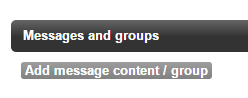
6. Add your target group and message content:
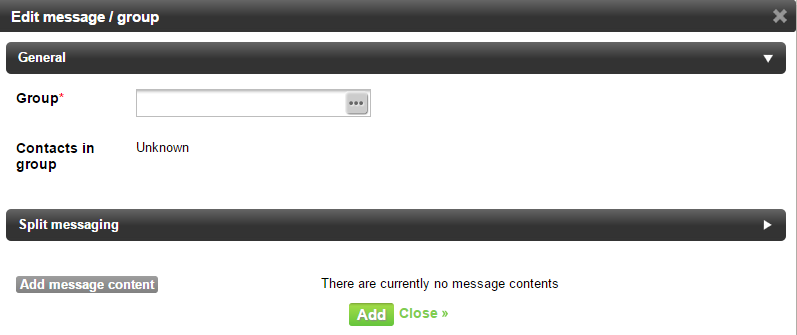 Click |...| beside the "Group field" and select the group that you created earlier.
Click | Add message content | and select the message that you created earlier.
Once you have selected your group, Horizon will tell you how many contacts it currently contains: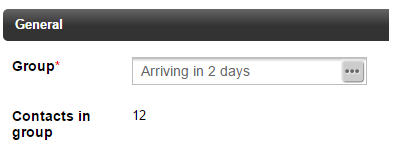
7. Click the green | Add | button.
8. If you selected a scheduled start date, you will be prompted to confirm that you want to schedule the message.
If you didn't select a scheduled start date, you will return to the Messages screen. Click the grey 'play' icon (third from the left, below) to schedule the start date / time for the triggered message: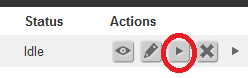
9. Click | Scheduled Messages | in the left-hand menu, to see details of all your scheduled messages: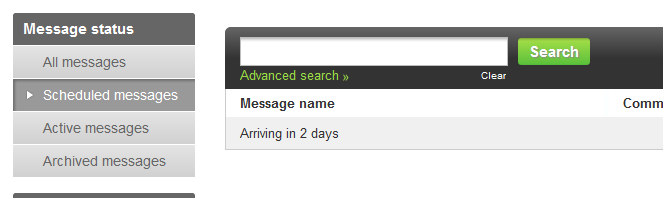
And that's it! Your message will then be sent every day at the scheduled time, to all contacts who (on that day) meet the specified conditions.
Note: Details of all triggered messages are added to each contact's "Contact Activity" record in Horizon, enabling you to see what messages have been sent. You can also use this information to search for and group your contacts if you need to.