When you're running campaigns, A/B split testing helps you to learn what works best and what doesn't; for example specific email subject lines, offers or "call-to-action" buttons.
Horizon lets you split test your campaign messages in two ways:
- "Split test": Where you send two different messages to a percentage of your overall target group, then send the best performing message to the remainder.
- "Split across the whole target group": Where you send one message to 50% of your target group and a different message to the other 50%.
How to run an A/B split test
- Create a campaign. For more information see Creating a new campaign.
- Click the '+ Send'button in the campaign builder, but don't select a message yet.
- Click the 'Advanced features' link.
- Click the 'Split messaging' heading to expand the options for split testing.
- Select the type of split test that you'd like to run.
If you selected "Split test"
- Select the overall % of contacts (or an actual number of contacts) to whom the 'A' and 'B' test messages should be sent.
- Select whether you will pick the "winning" (best performing) message manually or whether Horizon should select it automatically for you.
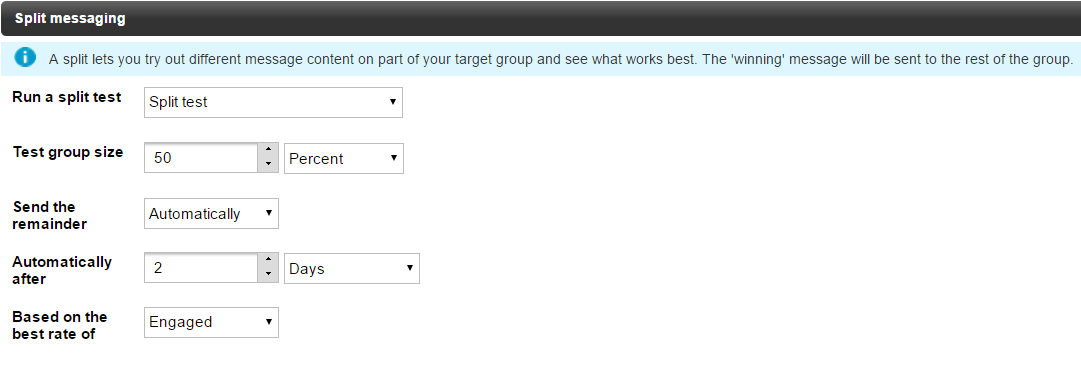
- If you would like Horizon to select the winning message automatically, set a time delay in Hours, Days, Weeks, or Months over which Horizon should measure the response to your A and B message.
For all split tests
- Click the 'Add message content' button to select or create the 'A' and 'B' messages that will be tested.
- Click Save.
- Setup the remainder of your campaign as normal.
If you selected a manual "Split test" to choose the "winning" message yourself
The message on your campaign will show as "On hold" status and will not continue until you select the "winning" message.
- Edit your campaign by clicking the pencil icon.
- In the Message Delivery section, select the view (eye) icon to the right hand side.
- Go to the "Engagement with target group: 'Split test'" section.
- Click the tick to the right hand side of the message you want to send out to the remaining contacts. The tick will turn black to indicate you have selected it, as below.
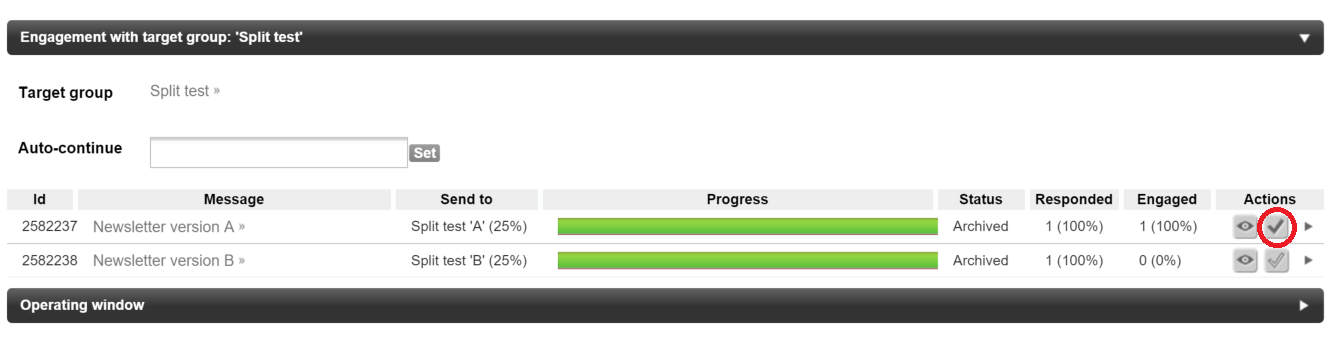
- To restart your campaign, select 'Set' by the 'Auto-continue' box. Select 'Now' to send the message straight away or alternatively set a later time and press 'Set'.