If your Horizon campaign contains a message to be sent, the first "phase" of the campaign will always try to send that message to your target group. You can optionally create targeted follow-on messages by adding other phases to the campaign.
For example, think about a campaign where the objective is to sign up contacts for an event. It's likely that many of your contacts won't sign up straight away. A second phase of the campaign could be added, to send a follow-on reminder message to only the contacts who haven't yet signed up. Then a third phase could be sent a day or two before the event, to give a final reminder and travel directions to all the contacts who have signed up.
The Horizon Campaign Builder makes it easy to create follow-on messages like this, by simply adding campaign phases.
How to add a phase
1. When in the 'Campaign Builder', click the | + Phase | button.
2. On the first phase of the campaign, select "Fixed" or "Relative", depending on whether you want the second phase to be sent on a fixed date or a number of days/weeks/months after the first phase.
3. Add the time of day at which you'd like the second phase to start.
4. Add the message and/or publication content to phase 2 of the campaign, by clicking |+ Send | or |+ Publish |.
5. On the message you added to phase 2 of the campaign, tick the grey "Target contacts" button.
6. You'll then see a funnel chart, which you can click to decide which of the original contacts should be targeted with the Phase 2 content (or you can select an option from the left of the chart):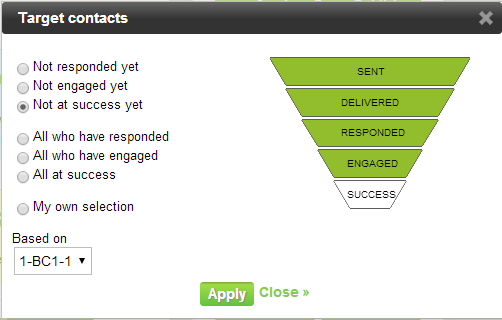
7. Click | Apply | to return to the campaign builder screen:
8. Optionally add more follow-on phases to the campaign.
9. Click | Save |.
The second phase will run at the scheduled time and will target contacts based on their current level of engagement.
Additional resources
For an overview of Campaigns, see Campaigns - An overview.