Member levels bring a gamification to a loyalty scheme. This encourages members to engage more, as they earn more points so that they can reach the next member level.
To create member levels, go to the Loyalty Management tab, then select 'Member level' from the left-hand menu.
- Click
 at the top of the page. You'll want to start with the default member level, so the level that a new member would start on. You'll see why later on.
 - Give your member level a name. E.g. Basic. This field is mandatory, while the other fields are optional.
- You can give your member level a description. E.g. You've definitely got fashion sense.
- You can add an image. E.g. A picture of a person with fashion sense, but a basic outfit.
- Click

- Add as many member levels as you wish, then select 'Member level assignment' from the left-hand menu.
- You'll notice that there is a 'Default assignment rule'. The new member level you created will show as your default.
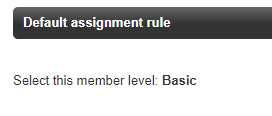
If a member doesn't match any of the member level assignment rules, they will default to this one. - To add new member levels, click

- A pop-up window will appear.
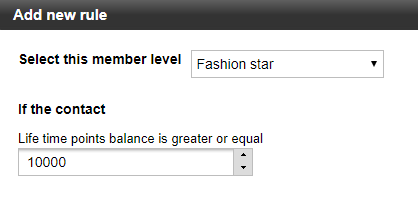
Select a member level from the drop-down list. If you've already created a rule for a member level, they will not appear in this list. - Type in, or use the arrow keys, how many points you need to reach this member level. E.g. A 'Fashion star' member may be the highest member level, so you may want to set this number very high.
- Click

- Your new member level assignment rule will be listed as 'Rule 1'. Rules can be moved up and down the ranking, edited or deleted, using the icons on the right hand side.
- Add as many member levels as you want.
How are member level assignment rules calculated?
Rules are calculated in number order. Horizon will start by checking whether a member matches ‘Rule 1’. If they match, that member level is assigned. If they don’t match, Horizon will move on to ‘Rule 2’. It will go through all rules and if no rules match, it will assign the contact to the ‘default member level’.